Complete Security Architecture Set-up
In this lab, we will deploy and interact with a segmented, routed network that uses multiple subnets and device categories to implement technologies prevalent in real-world enterprise networks. The lab is designed to be realistic, using Containerlab to simulate a working environment without the overhead of full virtual machines.
Lab Objectives
By the end of this lab, you will be able to:
- Design a segmented enterprise network using routed security zones
- Deploy a realistic network topology using Containerlab
- Implement static routing across WAN links
- Enforce security policies using ACL-based firewalls
- Transition from manual configuration to Infrastructure as Code (IaC)
- Validate network behavior through systematic testing
Topology
Our mini network is composed of a company network LAN and a WAN, The company has a Web server inside their network that external people can visit, in addition employees can SSH into that server. Our purpose is to set up the topology, configure the company router with the corrects subnets and ACL rules for a secure and working network.
| Zone | Subnet | Trust Level | Purpose |
|---|---|---|---|
| Zone A (LAN-A) | 10.0.0.0/24 | Untrusted | External users |
| WAN | 115.49.23.0/30 | Transit | Inter-router connectivity |
| Zone B-0 (Internal Hosts) | 10.0.1.0/24 | Trusted | Employee workstations |
| Zone B-1 (Server Zone) | 10.0.2.0/24 | Semi-Trusted | Public-facing servers |
The server zone is being shared between the company and externals network, it is considered as a demilitarized zone.
Devices
- Routers: Nokia SR Linux (router-a & router-b)
- Switches: Arista cEOS (switch-a, switch-b-0, switch-b-1)
- Hosts: Alpine Linux (admin-host, host-a, company-server)
Topology Picture : 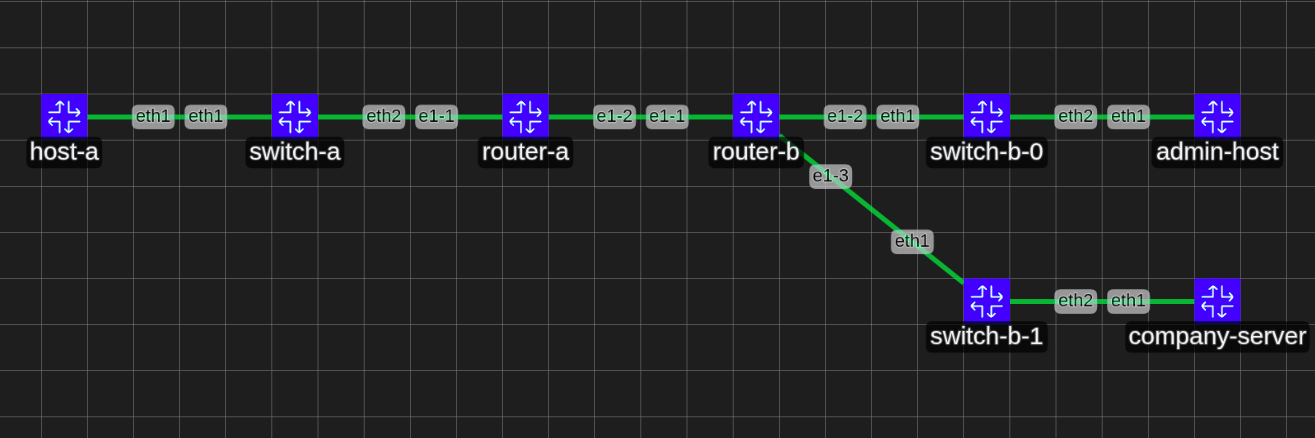
Environment set up
You can install Containerlab on your host or a VM (recommended). Follow the official installation guide.
- Pull the docker image of the
Nokia SR Linuxto be our router. More info- Pull the image
docker pull ghcr.io/nokia/srlinux - Connect to the image
docker exec -it <container-name/id> bash
- Pull the image
- Import and install the
Artisa cEOSfrom their official website to be our switch- Import
docker import cEOS-lab-4.35.1F.tar.xz ceos
- Import
- Build
the alpine linuximages from the docker files there and there- Build
sudo docker build -t alpine-host -f alpine-host.dockerfile .
- Build
- and
sudo docker build -t alpine-server -f alpine-server.dockerfile .
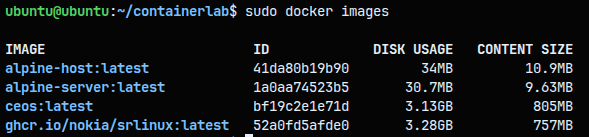
There are our new containers :
Topology
Now that we have all the containers representing our Network devices we will create a file that tells to containerlab how to attack all these containers together:
- Create a folder for our
Containerlabproject and create the main topology file as the docs says- We already created a
containerlabfolder - We will now create a topology file
security-arch.clab.yaml
- We already created a
- Set up the basic topology without routes implementing the following subnets for each network :
| Network Segment | Subnet | Gateway | Description |
|---|---|---|---|
| External Network | 10.0.0.0/24 | 10.0.0.1 | Public-facing network segment |
| Internal Network (Hosts) | 10.0.1.0/24 | 10.0.1.1 | Internal hosts and workstations |
| Internal Network (Servers) | 10.0.2.0/24 | 10.0.2.1 | Server infrastructure |
| WAN Link | 115.49.23.0/30 | - | Router-to-router connection |
- router-a (External):
115.49.23.1/30 - router-b (Internal):
115.49.23.2/30
Final Topology (Think of this topology as the connections between the switches and router and end devices) :
1
2
3
4
5
6
7
8
9
10
11
12
13
14
15
16
17
18
19
20
21
22
23
24
25
26
27
28
29
30
31
32
33
34
35
36
37
38
39
40
41
42
43
44
45
46
47
48
49
50
51
52
53
54
55
56
57
58
59
60
61
62
63
64
65
66
67
name: company-network

topology:
  nodes:
    # External Network (10.0.0.0/24)
    host-a:
      kind: linux
      image: alpine-host:latest
      exec:
        - ip addr add 10.0.0.10/24 dev eth1
        - ip route replace default via 10.0.0.1

    switch-a:
      kind: ceos
      image: ceos:latest

    # WAN Routers (115.49.23.0/30)
    router-a:
      kind: nokia_srlinux
      image: ghcr.io/nokia/srlinux:latest
      # startup-config will be added later with .json files
      startup-config: router-a-no-static-route.json # Adding the default configuration to begin with

    router-b:
      kind: nokia_srlinux
      image: ghcr.io/nokia/srlinux:latest
      # startup-config will be added later with .json files
      startup-config: router-b-no-static-route.json # Adding the default configuration to begin with

    # Internal Network - Hosts Side (10.0.1.0/24)
    switch-b-0:
      kind: ceos
      image: ceos:latest

    admin-host:
      kind: linux
      image: alpine-host:latest
      exec:
        - ip addr add 10.0.1.10/24 dev eth1
        - ip route replace default via 10.0.1.1

    # Internal Network - Servers Side (10.0.2.0/24)
    switch-b-1:
      kind: ceos
      image: ceos:latest

    company-server:
      kind: linux
      image: alpine-server:latest
      exec:
        - ip addr add 10.0.2.10/24 dev eth1
        - ip route replace default via 10.0.2.1

  links:
    # External Network
    - endpoints: [ "host-a:eth1", "switch-a:eth1" ]
    - endpoints: [ "switch-a:eth2", "router-a:e1-1" ]

    # WAN Link
    - endpoints: [ "router-a:e1-2", "router-b:e1-1" ]

    # Internal Networks
    - endpoints: [ "router-b:e1-2", "switch-b-0:eth1" ]
    - endpoints: [ "switch-b-0:eth2", "admin-host:eth1" ]

    - endpoints: [ "router-b:e1-3", "switch-b-1:eth1" ]
    - endpoints: [ "switch-b-1:eth2", "company-server:eth1" ]
Subnets configuration
Implementing the following subnets for each network :
| Network Segment | Subnet | Gateway | Description |
|---|---|---|---|
| External Network | 10.0.0.0/24 | 10.0.0.1 | Public-facing network segment |
| Internal Network (Hosts) | 10.0.1.0/24 | 10.0.1.1 | Internal hosts and workstations |
| Internal Network (Servers) | 10.0.2.0/24 | 10.0.2.1 | Server infrastructure |
| WAN Link | 115.49.23.0/30 | - | Router-to-router connection |
- router-a (External):
115.49.23.1/30 - router-b (Internal):
115.49.23.2/30
Since our routers run inside docker containers we can connect to them and configure them for subnets via these commands : - for routers through ssh : ssh admin@<router name> with password: NokiaSrl1! - through docker shell : docker exec -it <router name> sr_cli - For host remote access : docker exec -it <host name> sh
- First lets tackle the routers : I will connect to the router a via the command :
docker exec -it <router name> sr_cli. This will get me a shell into that device. For the configuration we will assign to each router interface link a subnet given in the table above, I can now configure and save the config files :
1
2
3
4
5
6
7
8
9
10
11
12
# Enter candidate configuration mode
enter candidate

# Configure the interface with IP address
set interface ethernet-<dev/dev> subinterface 0 ipv4 admin-state enable
set interface ethernet-<dev/dev> subinterface 0 ipv4 address <IP>

# Enable the interface
set interface ethernet-<dev/dev> admin-state enable

# Commit and save the configuration
commit save
Router A configuration : 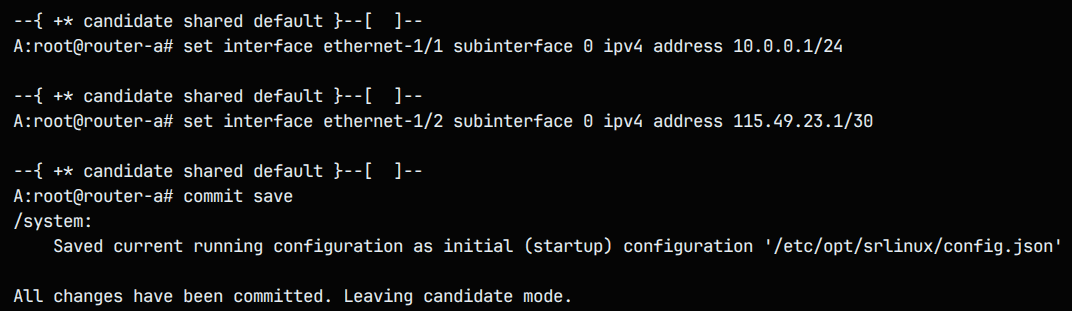
The ethernet-1/1 interface is an external LAN and the ethernet-1/2 is the WAN. We can test if everything is fie via looking at info interface <interface> as shown below : 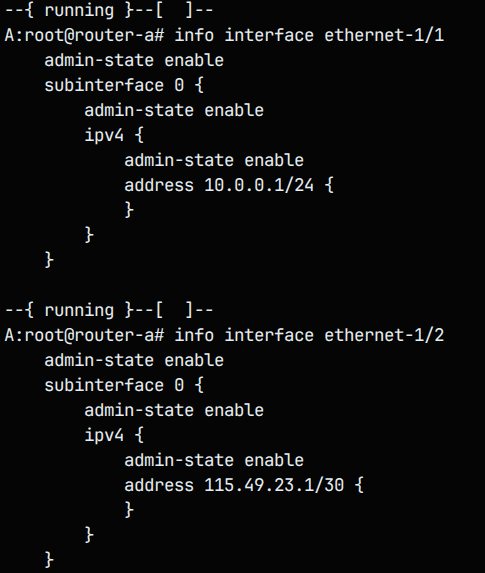
Same for router b looking at the table above we configure this way : 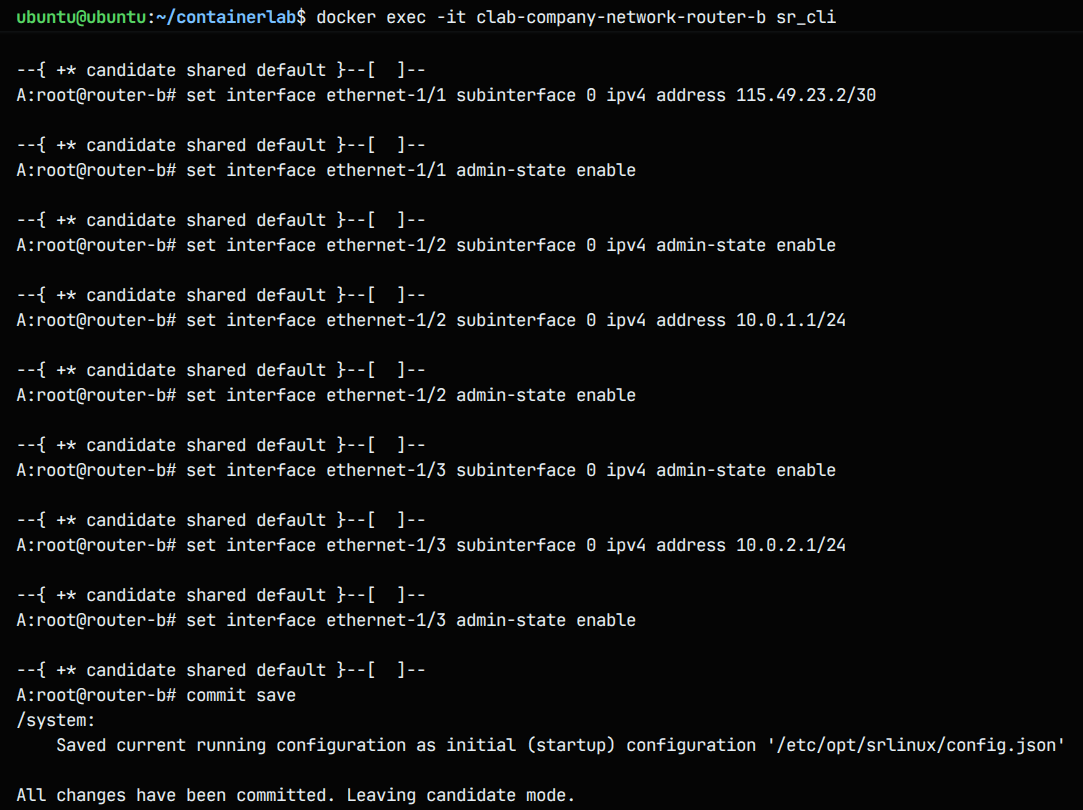
To configure the end devices with a static IP and a default gate-away we modify the yaml file (since there is no other way for persistence), we add :
1
2
3
  exec:
	- ip addr add <static IP> dev <dev>
	- ip route replace default via <default gateway IP>
We can test via the command ifconfig inside the company server : 
Note: Every
commit saveexecution a modified router config file will be set with the options, we will need to copy this every time and place it in the startup configuration file in our yaml instead of the no static default config by running the command :docker exec -it <device name> bash -c "cat/etc/opt/srlinux/config.json" > configs/router.json
After inspecting the size of the docker images we notice that there is a huge difference between alpine images (30-34MB) compared to Network OS images (3.2-3GB) between the cEOS switch that takes the most space and the Nokia SR Linux router.
If these full OS copies images where deployed in VMs they would be up to (10-30+ GB) this include the entire kernel, libraries, GUI this would be heavy to run for our computers, however using containerization save space and power since all these images uses the same kernel the Host uses and it also allows multiple images to share common layers.
First Deployment
- We will deploy our topology using the command :
clab deploy -t security-arch.clab.yaml --reconfigure
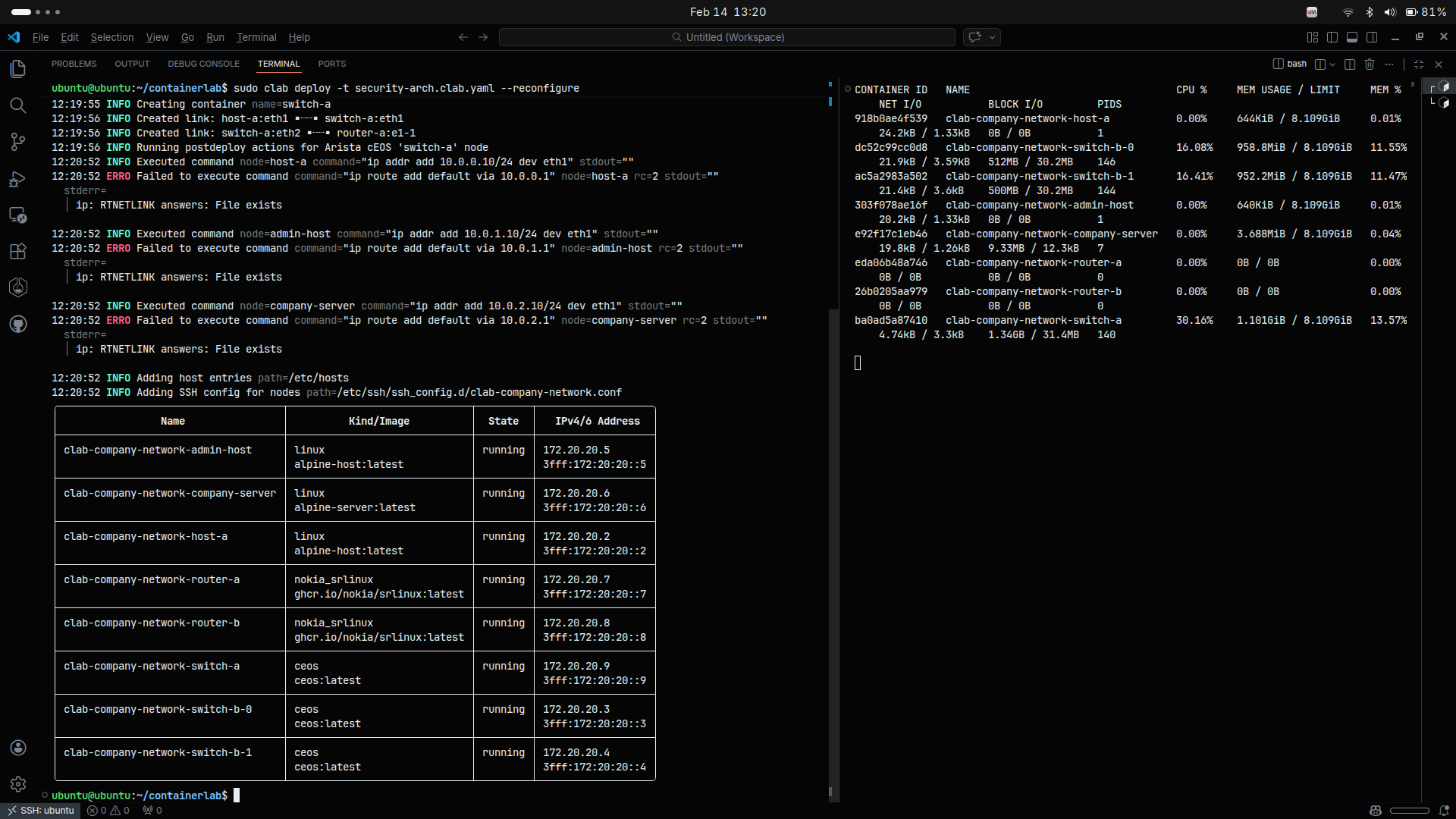
We can see that containerlab is creating containers following the security-arch.clab.yaml file topology and output a table with all devices so we can remote access them. By Monitoring the containers using the command : sudo docker stats we see that the containers are up and are using up to 1GB of RAM for the network switches containers.
We can now ssh or connect via docker shell into the networking devices to configure them :
- for routers through ssh :
ssh admin@<router name>with password:NokiaSrl1! - through docker shell :
docker exec -it <router name> sr_cli - For host remote access :
docker exec -it <host name> shTesting
- intra-zone connectivity : we will try to ping from the admin (10.0.1.10) to the server (10.0.2.10)
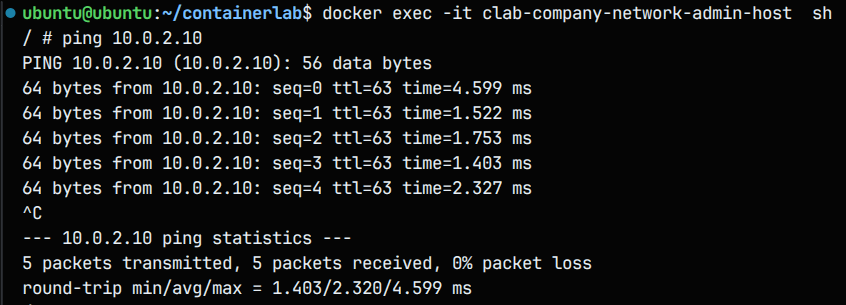
The intra network (Server-Host) connection works, because the two connected to the same router which make the connection between he two subnets work.
- Inter-zone connectivity : we will try to ping from the host-a (10.0.0.10) to the admin (10.0.1.10)
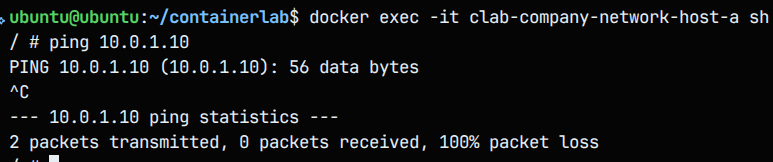
The inter network connectivity isn’t working because for this unknown network to be able to access the company network need its router to route the connections for that IP (Company) across the WAN (in short the router has no idea where to forward these packets).
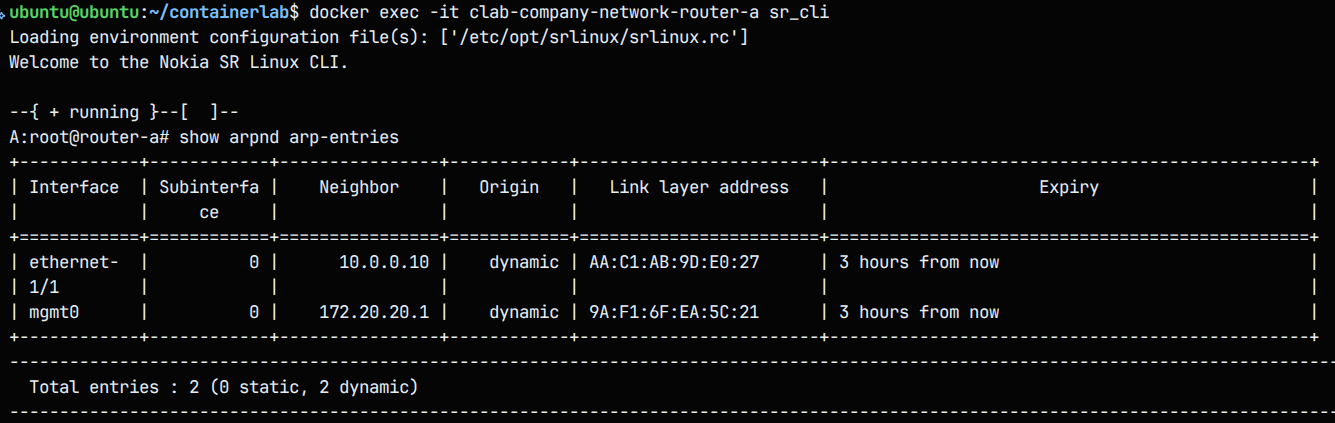
To be sure that its the routing fault we can inspect the ARP tables inside the routers via the command show arpnd arp-entries :
router a :
router b :
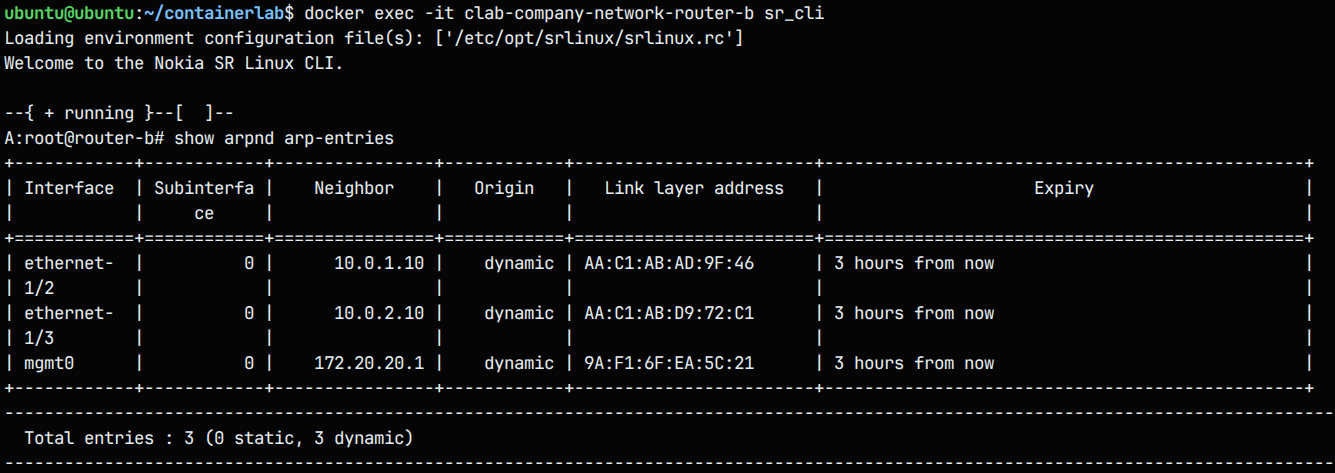
Yes we see that in the intra zone router-B have both Devices connected and can route directly between Ethernet-1/2 and Ethernet-1/3 and in the inter zone the router-A have the host-a device connected. We see that there is no routing between the two routers and that makes the connection between the two zone impossible, router a and b doesn’t know which networks exists behind the WAN. We need to configure that.
Configuring Inter-Zones connectivity
Configuration model :
1
2
3
4
enter candidate
set /network-instance default next-hop-groups group <name> nexthop 1 ip-address <ip to forward trafic to>
set /network-instance default static-routes route <subnet from where trafic come> next-hop-group <name>
commit save
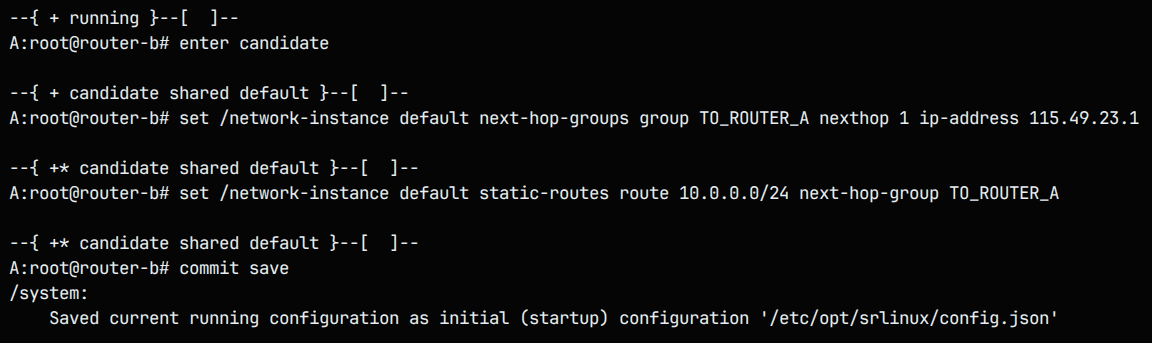
- Router B configuration :
1
2
3
4
enter candidate
set /network-instance default next-hop-groups group TO_ROUTER_A nexthop 1 ip-address 115.49.23.1
set /network-instance default static-routes route 10.0.0.0/24 next-hop-group TO_ROUTER_A
commit save
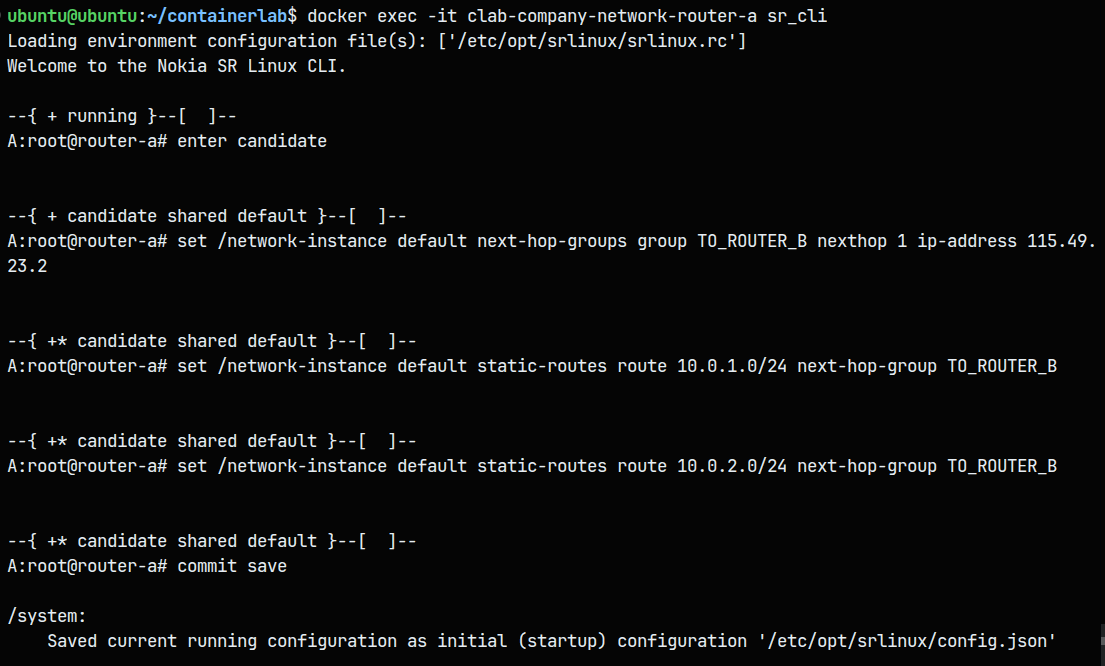
- Router A configuration :
1
2
3
4
5
enter candidate
set /network-instance default next-hop-groups group TO_ROUTER_B nexthop 1 ip-address 115.49.23.2
set /network-instance default static-routes route 10.0.1.0/24 next-hop-group TO_ROUTER_B
set /network-instance default static-routes route 10.0.2.0/24 next-hop-group TO_ROUTER_B
commit save
We can now verify the new ARP entries for the inter zones connectivity (router b/a) : 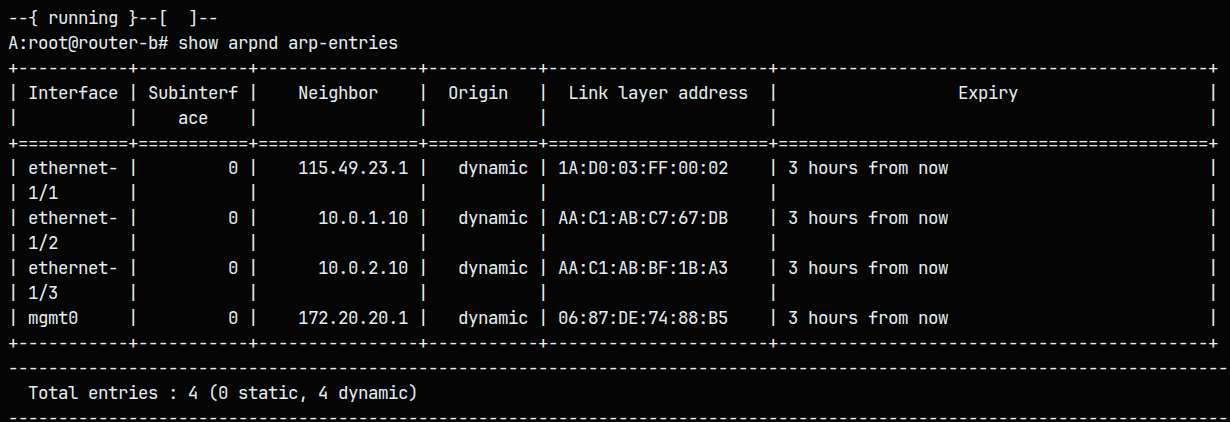
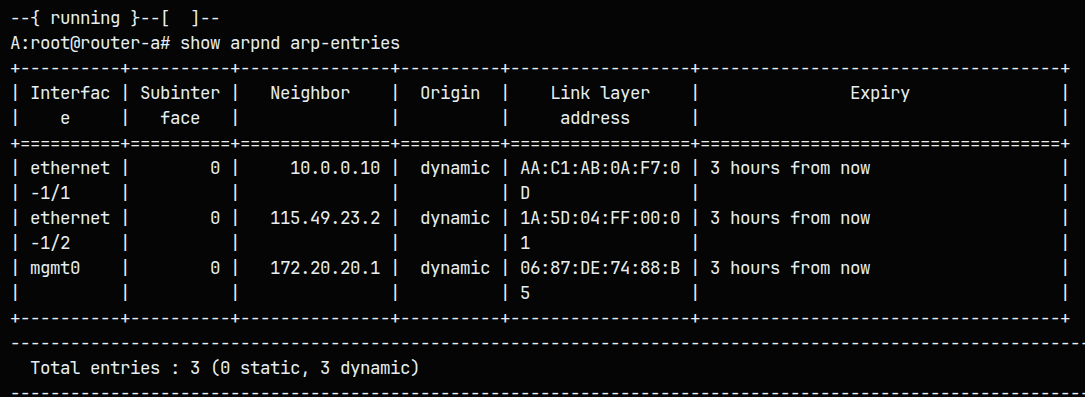
Pinging from host a to the company admin computer is now possible, In short routing rules give you precise control over where, how, and to whom traffic flows in a network or application.
Process automation
This process can be automatized using a well configured JSON config file that we give to the router, This prevent configuring every-time the routers by hand. Access the config files of the routers and add these line of code in the network-instance section and configure the files into the startup config of the two routers :
for router A :
1
2
3
4
5
6
7
8
9
10
11
12
13
14
15
16
17
18
19
20
21
22
23
24
25
26
27
28
29
30
31
32
{
  "network-instance": [
    {
      "name": "default",
      "next-hop-groups": {
        "group": [
          {
            "name": "TO_ROUTER_B",
            "nexthop": [
              {
                "index": 1,
                "ip-address": "115.49.23.2"
              }
            ]
          }
        ]
      },
      "static-routes": {
        "route": [
          {
            "prefix": "10.0.1.0/24",
            "next-hop-group": "TO_ROUTER_B"
          },
          {
            "prefix": "10.0.2.0/24",
            "next-hop-group": "TO_ROUTER_B"
          }
        ]
      }
    }
  ]
}
For router B :
1
2
3
4
5
6
7
8
9
10
11
12
13
14
15
16
17
18
19
20
21
22
23
24
25
26
27
28
{
  "network-instance": [
    {
      "name": "default",
      "next-hop-groups": {
        "group": [
          {
            "name": "TO_ROUTER_A",
            "nexthop": [
              {
                "index": 1,
                "ip-address": "115.49.23.1"
              }
            ]
          }
        ]
      },
      "static-routes": {
        "route": [
          {
            "prefix": "10.0.0.0/24",
            "next-hop-group": "TO_ROUTER_A"
          }
        ]
      }
    }
  ]
}
Testing and takeaways about IaC
After redeploying the lab we see that the connection between the intra-zone is working (pinging from host-a to the company server for example works).
The concept that allowed us the automatize the process into code is called infrastructure as code defining a network configurations (including routes, firewall rules, subnets) in version-controlled code, so they are automatically and consistently applied every deployment. A little comparison between setting up by hand and Iac can be made :
| Feature | Manual Approach | IaC / Automated Approach |
|---|---|---|
| Speed | Slow | Fast |
| Human Error | High risk | Minimal risk |
| Consistency | Varies per environment | Always identical |
| Auditability | Hard to track | Full version history (Git) |
| Scalability | Difficult | Easily scalable |
| Repeatability | Must redo every time | One command re-deploys all |
| Security | Easy to misconfigure | Enforced through code |
In short infrastructure as code is better for :
- Production environments
- Team collaboration
- Repeatable deployments
- Multi-site networks
- Compliance/audit requirements
- Change management
and manual configuration for :
- Quick testing/debugging
- Learning/lab environments
- One-off troubleshooting
- Emergency fixes
Implementing Security Zones and Firewalls (ACLs)
In this part we’ll implement security zones, by restricting access to the SSH service of the server from the untrusted, external network. We’ll implement a simple type of firewall technology called ACLs (Access Control Lists), Where we’ll allow/block certain connections based on source, destination, & service.
We will implement to the Company router some rules : - Allow HTTP to the corporate server from anywhere. - Allow all traffic within the Corporate Network (Internal trust zone) (both B-0 to B-1 & vice-versa) - Block SSH into the Corporate Network from anywhere (to both B-0 & B-1). - Allow ICMP into the corporate network from anywhere (to both B-0 & B-1). - Permit ICMP to router-b from anywhere. - Block all traffic.
Set up examples :
- Create ACL and Block SSH to LAN B-0 (10.0.1.0/24) :
1
2
3
4
5
6
7
8
9
10
docker exec -it clab-company-network-router-b sr_cli

enter candidate
acl acl-filter CORPORATE_SECURITY type ipv4 entry 1000
match ipv4 destination-ip address 10.0.1.0 mask 255.255.255.0
match ipv4 protocol tcp
match transport destination-port value 22
action drop
/
commit save
- Add Entry to Block SSH to LAN B-1 (10.0.2.0/24) :
1
2
3
4
5
6
7
8
enter candidate
acl acl-filter CORPORATE_SECURITY type ipv4 entry 1100
match ipv4 destination-ip address 10.0.2.0 mask 255.255.255.0
match ipv4 protocol tcp
match transport destination-port value 22
action drop
/
commit save
Implementing the other rules :
1
2
3
4
5
6
7
8
9
10
11
12
13
14
15
16
17
18
19
20
21
22
23
24
25
26
27
28
29
30
31
32
33
34
35
36
37
38
39
40
41
42
43
44
45
46
47
48
49
50
51
52
53
54
55
56
57
58
59
60
61
62
63
64
65
66
67
68
69
docker exec -it clab-company-network-router-b sr_cli

enter candidate
acl acl-filter CORPORATE_SECURITY type ipv4

# Rule 1: Allow HTTP to corporate server (10.0.2.10)
entry 100
match ipv4 destination-ip address 10.0.2.10 mask 255.255.255.255
match ipv4 protocol tcp
match transport destination-port value 80
action accept
/

# Rule 2a: Allow all traffic within corporate network (B-0 to B-1)
entry 200
match ipv4 source-ip address 10.0.1.0 mask 255.255.255.0
match ipv4 destination-ip address 10.0.2.0 mask 255.255.255.0
action accept
/

# Rule 2b: Allow all traffic within corporate network (B-1 to B-0)
entry 210
match ipv4 source-ip address 10.0.2.0 mask 255.255.255.0
match ipv4 destination-ip address 10.0.1.0 mask 255.255.255.0
action accept
/

# Rule 3a: Block SSH to B-0 network
entry 300
match ipv4 destination-ip address 10.0.1.0 mask 255.255.255.0
match ipv4 protocol tcp
match transport destination-port value 22
action drop
/

# Rule 3b: Block SSH to B-1 network
entry 310
match ipv4 destination-ip address 10.0.2.0 mask 255.255.255.0
match ipv4 protocol tcp
match transport destination-port value 22
action drop
/

# Rule 4a: Allow ICMP to B-0 network
entry 400
match ipv4 destination-ip address 10.0.1.0 mask 255.255.255.0
match ipv4 protocol icmp

/

# Rule 4b: Allow ICMP to B-1 network
entry 410
match ipv4 destination-ip address 10.0.2.0 mask 255.255.255.0
match ipv4 protocol icmp
action accept
/

# Rule 5: Permit ICMP to router-b itself
entry 500
match ipv4 protocol icmp
action accept
/

# Rule 6: Block all other traffic (default deny)
entry 9999
action drop
/

commit save
Then we identify which interface connects to Router-A (the WAN link):
1
2
# Check which interface has 115.49.23.x IP
show interface brief
Assuming it’s ethernet-1/1, apply the ACL:
1
2
3
enter candidate
set acl interface ethernet-1/1 input acl-filter CORPORATE_SECURITY type ipv4
commit save
This is where Infrastructure as Code comes in handy. All of this configuration takes a big amount of time and it is very susceptible to human error (I made some myself). Another approach is to use ready-made configuration files that the router interprets and uses directly. In bigger companies and production environments, doing this manually across dozens or hundreds of routers and network devices is simply not realistic.
With IaC, all the network configurations — including static routes, firewall rules, VLANs, and routing rules — are written and stored as code files. This means the entire network setup can be deployed automatically, consistently, and repeatedly with a single command. If a mistake is made, it can be caught in a code review before it ever reaches the network, and rolled back instantly if needed.
Implementing ACLs using JSON can be made by following this simple example configuration line 1273 of my configuration files (can be found below) :
1
2
3
4
5
6
7
8
9
10
11
12
13
14
15
16
17
18
19
20
21
22
23
24
25
26
27
28
"srl_nokia-acl:acl": {
    "acl-filter": [
      {
        "name": "CORPORATE_SECURITY",
        "type": "ipv4",
        "entry": [
          {
            "sequence-id": 100,
            "match": {
              "ipv4": {
                "protocol": "tcp",
                "destination-ip": {
                  "address": "10.0.2.10",
                  "mask": "255.255.255.255"
                }
              },
              "transport": {
                "destination-port": {
                  "value": 80
                }
              }
            },
            "action": {
              "accept": {

              }
            }
          },
My configuration files can be found there for router b and there for router a.
Testing and takeaways
Now every SSH attempt from an external network is blocked by the company router only HTTP and ICMP connections are permitted. Example for host-a : 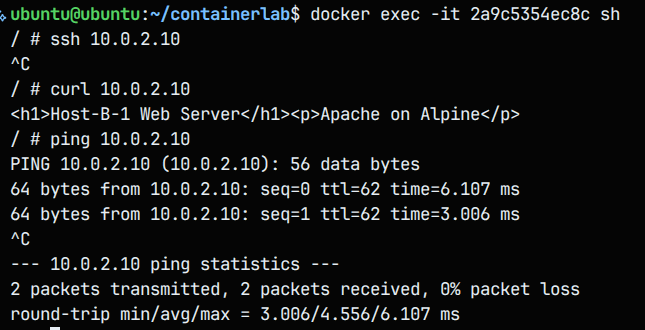
| Test | Expected Result |
|---|---|
| Ping within same LAN (intra) | work |
| Ping across LANs (inter) | work |
| SSH to LAN B-0 from outside | blocked (ACL rule) |
| SSH to LAN B-1 from outside | blocked (2nd ACL entry) |
| Curl from intra | work |
In our configuration we added at the end a deny all rule Its purpose is Any traffic not explicitly allowed by a previous rule is automatically blocked, It ensures no unintended traffic slips through due to a missing rules and It follows the Principle of Least Privilege only what is explicitly permitted is allowed, everything else is denied.
Key Takeaways
This lab goes beyond the mechanics of connecting containers; it highlights a fundamental transformation in modern networking. The exercise reflects the industry-wide transition toward software-defined infrastructure, where networks are no longer built device by device, but designed, validated, and deployed as cohesive systems. By replacing manual configuration with automation, we achieve networks that are faster to deploy, easier to audit, and significantly more reliable.
1. Intentional Connectivity: Routing and Segmentation
In modern enterprise environments, unrestricted “plug-and-play” connectivity represents a serious security liability. Through network segmentation, we deliberately isolated internal company resources (Zone B) from external-facing services (Zone A).
Key Insight: Connectivity must be deterministic. By explicitly defining static routes, we ensured that traffic flows only along authorized paths.
Architectural Shift: The network evolved from a flat topology—where all systems implicitly trust one another—to a structured, routed design where each subnet has a clearly defined purpose and destination.
2. Reinforcing the Security Posture with ACLs
Access Control Lists (ACLs) were introduced as a foundational security control. Rather than relying on broad allow/deny rules, ACLs provide precise filtering based on protocols and services (e.g., SSH versus HTTP).
Key Insight: Effective security is grounded in the principle of least privilege. By enforcing an implicit deny policy, any traffic not explicitly permitted is blocked by default.
Operational Shift: Security moves from a passive assumption to an actively enforced policy, where every packet is validated against clearly defined rules.
3. Infrastructure as Code: The Defining Transformation
The most impactful change demonstrated in this lab is the transition from imperative management (manual command execution) to declarative configuration using Infrastructure as Code (IaC).
Key Insight: Defining network topology and policy using YAML and JSON allows infrastructure to be treated like software—repeatable, testable, and version-controlled.
Operational Shift: Manual configuration and ad-hoc troubleshooting are replaced by a single, authoritative source of truth. If the configuration is correct, the resulting network state is correct.
Final Thoughts
Modern networking is no longer about individual devices or physical connections—it is about expressing intent through code. Tools like Containerlab and IaC frameworks enable engineers to design resilient, automated systems that scale with confidence. By adopting these practices, you move from simply managing networks to architecting infrastructure that is secure, reproducible, and future-proof.